
iOS 27 Child Safety Features Guide for Michigan Families
As kids spend more and more time online, many Michigan parents are wondering how they can make their children's iPhone or iPad safer. Apple's new child safety features ios27 now provide
system-level supervision. It works across apps, messages, calls, and browsing instead of having to adjust each separately. In this guide, you'll learn what has changed, and how to use these tools to protect children while preserving age-appropriate independence.
Key Takeaways
- To create a safe setup, add content controls, communication approvals, screen time routines, ask to browse, and communication safety.
- Enforce digital time allowances for both school days and weekends. Rules should be predictable enough that children stop treating every limit as a fresh debate.
- Review iPhone and iPad settings monthly since children’s needs change quickly, especially in the teen years.
- Trust grows when boundaries are updated thoughtfully rather than abandoned suddenly.
Why iOS 27 Child Safety Updates Matter for Michigan Families

Children often bounce between school apps, entertainment games and social media, and messaging all within the same device. This means risk rarely comes from one app alone. Apple’s iOS 27 child safety updates
combine parental controls, purchase approvals, age ratings, online safety tools, and device access time management into one family framework.
Apple has streamlined child account setup and improved content and communication controls. They have added
safer website permissions through Safari approvals. They've also made it easier to apply protections across both iPhone and iPad. This is especially useful for Michigan families managing school-day routines, after-school pickups, and shared home devices.
Who These Features Are Designed For
For children under 13, Apple’s child account protections are designed to apply stronger defaults from the start. This includes tighter content settings, communication controls, and website permissions. That matters because younger children usually need prevention built in before bad habits form.
For teens up to 18, iOS 27 supports more tailored restrictions with
room for independence. Parents can loosen limits by age and maturity level instead of removing protections all at once.
Step 1: Set Up or Convert to a Child Account (The Foundation)

Start by creating a child account during device setup so Apple can apply age-based defaults immediately. That single decision affects app approvals, app limits, category limits, communication settings, and purchase permissions. This creates the foundation of the entire safety system.
If your child has already been using a standard apple account, converting this account is often easiest. The key requirement is that the child must be added to Family Sharing under a parent or guardian account. Verify the family organizer role so the right parent/guardian can manage permissions.
Once the child account is active, monitoring becomes more consistent across Apple services. Parents can review downloads, set content filters, and manage the time spent on screen all from one place.
Checklist Before You Start
Update the family’s devices to iOS 27 and related Apple operating systems before changing settings. Version mismatches often explain why one device shows a control and another does not.
Confirm the child’s correct birthdate and family role before finishing setup. Incorrect age data can trigger the wrong defaults, which weakens the protection model from the start.
Step 2: Control What Kids Can See (Content and App Access)

Content restrictions in iOS 27 are most effective when parents begin with age-appropriate defaults and then adjust selectively. Apple’s controls can limit explicit content, mature apps, and restricted media categories. This reduces accidental exposure to inappropriate content and improves digital wellbeing.
App access can be managed in two layers: what is allowed now and what requires approval later. When parents pre-approve essential tools such as school apps or family communication apps, they reduce daily friction. This still allows parents to keep entertainment and social downloads under review.
Practical App Approval Rules That Reduce Daily Friction
Pre-approve educational apps, transportation tools, and communication apps used with family or caregivers. Review games, social and essential apps, and creator platforms case by case since these change quickly in both content and contact risk.
Use clear device names and child labels in family sharing. Accurate naming prevents the common mistake of approving the wrong app for the wrong child.
Step 3: Manage Who Kids Can Communicate With (Messages, FaceTime, Phone)

Communication management is one of the most important iOS 27 upgrades. Many digital safety problems begin with a contact, not with content. Apple now gives parents more control over messages and FaceTime. Children can communicate with trusted people while reducing exposure to unknown outreach.
New contact requests are especially important because they create a decision point before a conversation starts. Parents can review who is trying to connect, which helps block spam, scam attempts, and inappropriate contact.
Age should determine each child's restrictions. Younger children often need a shorter list of trusted contacts, while teens may need broader access with periodic review.
Step 4: Use Screen Time Upgrades to Set Healthier Routines
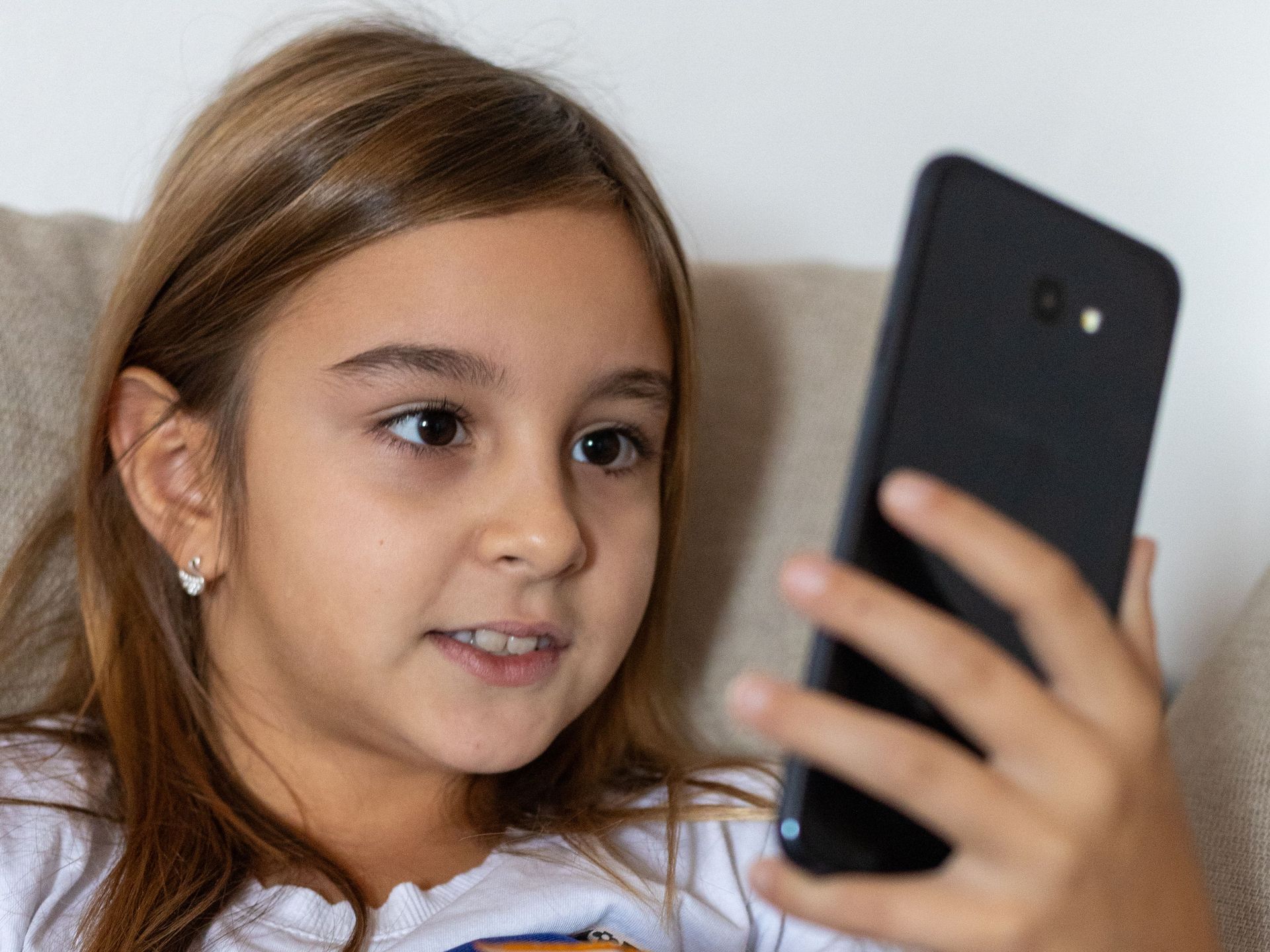
iOS 27 works best as a routine-setting tool rather than a tool for punishment. Apple’s updated structure makes it easier to manage device access in ways that reflect real life. This is essential for busy Detroit households balancing school, sports, homework, and downtime.
Time allowances are especially practical because they let parents set daily time budgets by category. A category-based model for entertainment or social use gives children some choice inside a clear limit. This often improves compliance when compared with setting dozens of timers.
School-day and weekend schedules should allow for different rules, because children’s responsibilities will change. A minimum effective controls approach usually works best: fewer rules, clearly explained, but consistently enforced.
How to Prevent Workarounds
Set a screen time passcode that is different from the device passcode. If both codes match, children only need to learn one number to defeat the system.
Disable account changes and restrict installing or deleting apps without approval. Most workarounds happen through settings changes, account switching, or app churn.
Step 5: Approve Websites With Ask to Browse in Safari

Ask to Browse in Safari adds another layer between full access and full blocking. Instead of constantly monitoring browsing, parents can require a child to request permission before opening certain websites. This turns website permissions into a quick review process instead of an all-day task.
This feature works best when combined with a broader web content filter. Ask to Browse handles edge cases and decision moments. The filter handles known categories of inappropriate material at scale.
For school use, create a small allowlist of trusted domains. This might include classroom tools, research sites, or age-appropriate learning resources. This approach reduces repetitive approvals without opening broad parts of the web that the child does not actually need.
Best Practices for Website Approvals
Approve domains carefully and avoid approving large platforms when only one page or section is necessary. Broad approvals can expose children to user-generated areas that were never part of the original request.
Step 6: Turn On Communication Safety Protections (Now Including Violence and Gory Content)
Communication Safety is designed to reduce harm from sensitive content shared directly with children. In iOS 27, Apple has previewed an expansion beyond nudity-focused detection to include violent content and gory media. This reflects the reality that disturbing images can be just as dangerous as sexual material.
This matters most when it comes to shared media inside messages. This area is where children can receive unexpected content from peers, access unknown contacts, or compromised accounts. A technical block is valuable because children often see harmful material before they know what to do with it.
Parents should still set realistic expectations because no filter catches everything. Communication safety works best when paired with contact approvals, content restrictions, and ongoing family conversations.
Protect Kids From Online Threats
Michigan families can feel more secure when they update to the new iOS 27 child safety features. These updates empower parents to control their children's online experiences with little disruption. By setting up child accounts and managing content access, families can create safer digital environments.
With tools like screen time upgrades and communication safety, it's now easier than ever to prioritize kids' well-being. We at A Courageous Voice in Detroit encourage you to explore these new updates today and give your family the protection they deserve.
FAQs
1. What are Apple’s new child safety features in iOS 27?
iOS 27 has created an easier child account setup, stronger app and content controls, plus improved communication management. It has also created Ask to Browse in Safari, and expanded Communication Safety protections. Together, these tools create a more unified family safety system.
2. How do Time Allowances work best with iOS 27?
Time Allowances let parents set daily time budgets by app category, such as Entertainment or Social. Children can choose how to use their time within the category limit instead of being managed through dozens of separate timers.
3. What is Ask to Browse in Safari?
Ask to Browse prompts children to request permission before visiting certain websites in Safari. Parents can then approve or deny access to specific sites without monitoring every browsing session.
4. Can parents approve who a child can message or call in iOS 27?
Yes. It expands communication management so parents can approve trusted contacts and review new contact requests across key communication apps.
5. Does Communication Safety in iOS 27 block violent content?
Apple has previewed an expansion of Communication Safety to block violent or gory shared media, not just nudity detection. That broader protection reflects a more realistic view of the sensitive content children may receive.